



Apache HTTPS
1. Install Apache httpd
Install httpd to configure Web server.
|
[1] |
Install httpd. |
|
[root@www ~]# yum -y install httpd # remove welcome page
# remove default error page
|
|
[2] |
Configure httpd. Replace the Server name to your own one. |
|
[root@www ~]# vi /etc/httpd/conf/httpd.conf # line 44: change
# line 76: change to ON
# line 262: Admin's address
# line 338: change
# line 276: change to your server's name
# line 402: add file name that it can access only with directory's name
# line 536: change
[root@www ~]# /etc/rc.d/init.d/httpd start
|
|
[3] |
If IPTables is running, allow HTTP port. HTTP uses 80/TCP. |
|
[root@www ~]# iptables -I INPUT 5 -p tcp -m state --state NEW -m tcp --dport 80 -j ACCEPT |
|
[4] |
Create a HTML test page and access to it with a web browser on Client to make sure it works normally. |
|
[root@www ~]# vi /var/www/html/index.html
Test Page
|

2. Create SSL Certificates
Create a your server's original SSL Certificate. If you use your server as a business, it had better buy and use a Formal Certificate from Verisigh and so on.
|
[root@www ~]# cd /etc/pki/tls/certs
/usr/bin/openssl genrsa -aes128 2048 > server.key
# remove passphrase from private key
/usr/bin/openssl req -utf8 -new -key server.key -out server.csr
|

3. Configure httpd for SSL
|
[1] |
Configure httpd for SSL. |
|
[root@www ~]# yum -y install mod_ssl [root@www ~]# vi /etc/httpd/conf.d/ssl.conf # line 77: uncomment
# line 78: uncomment and specify the server name
# line 93: change
# line 105: change to the one created in [1]
# line 112: change to the one created in [1]
[root@www ~]# /etc/rc.d/init.d/httpd restart
|
|
[2] |
If IPTables is running, allow HTTPS port. HTTPS uses 443/TCP. |
|
[root@www ~]# iptables -I INPUT 5 -p tcp -m state --state NEW -m tcp --dport 443 -j ACCEPT |
|
[3] |
Access to the test page from a client computer with a Web browser via HTTPS. The examample below is the Fiorefix. Following screen is shown because Certificates is own created one, but it's no ploblem, Proceed to next. |
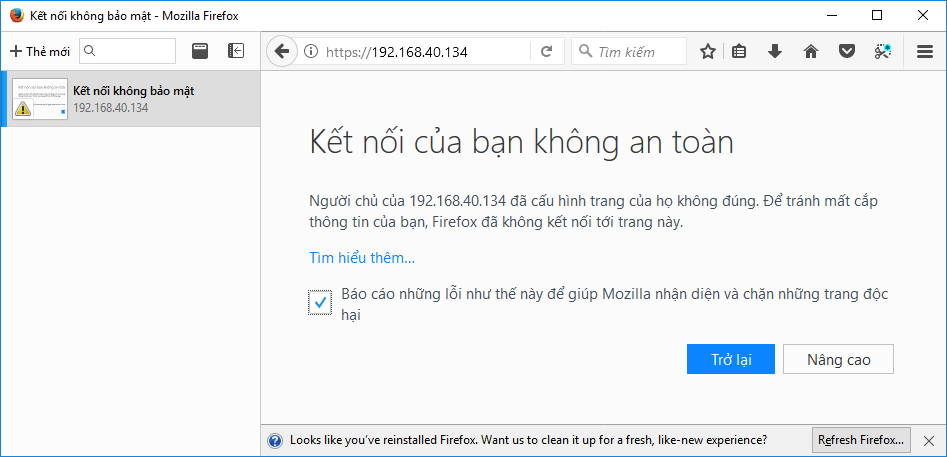


[4] Just Accessed on HTTPS.

- Xử lý điều kiện trong DB2
- BÌNH TĨNH TRƯỚC HỘP THƯ SỐ – NGHỆ THUẬT NHẬN DIỆN EMAIL PHISHING TỪ GÓC NHÌN NGHIỆP VỤ
- HÓA THÂN THÀNH "KẺ TẤN CÔNG": KHI HIỂU RÕ CẠM BẪY, TA PHÒNG THỦ VỮNG VÀNG HƠN
- CÁC CÔNG CỤ XÂY DỰNG GIAO DIỆN ỨNG DỤNG BẰNG TRÍ TUỆ NHÂN TẠO (AI)
- Silent Lynx khai thác lỗ hổng WinRAR để triển khai Reverse Shell nhằm tấn công các cơ quan chính phủ