



Triển khai Apache Web Server - Phần 3
5) Enable Userdir
Enable userdir, người dùng có thể xây dựng websites với cấu hình này.
[1] Cấu hình httpd để dùng UserDir.
[root@dtu ~]# vi /etc/httpd/conf/httpd.conf
# line 366: comment out
#UserDir disabled
# line 373: uncomment
UserDir public_html
# line 381 - 392: uncomment
AllowOverride All# change
Options None# change
Order allow,deny
Allow from all
Order deny,allow
Deny from all
[root@dtu ~]# /etc/rc.d/init.d/httpd restart
Stopping httpd: [ OK ]
Starting httpd: [ OK ]
[2] Tạo 1 Test page để kiểm tra nó có hoạt động đúng không.
[root@dtu ~]# useradd cent
[root@dtu ~]# echo cent_pass | passwd cent --stdin
Changing password for user cent.
passwd: all authentication tokens updated successfully.
[root@dtu ~]#
Sử dụng User cent để đăng nhập vào hệ thống.
[cent@www ~]$ mkdir public_html
[cent@www ~]$ chmod 711 /home/cent
[cent@www ~]$ chmod 755 /home/cent/public_html
[cent@www ~]$ vi ./public_html/index.html
UserDir Test Page
Welcome to Duy Tan University!
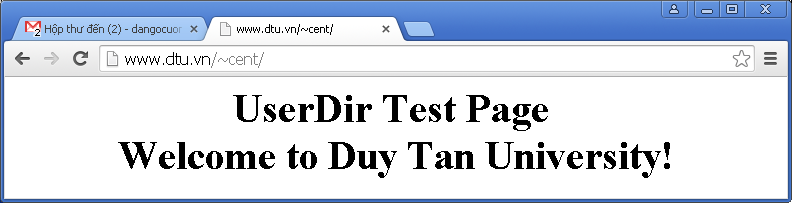
Lưu ý: Nếu gặp lỗi như hình sau

Thì sử dụng lệnh:
[root@dtu ~]# setenforce 0
6) Configure SSL
Cấu hình httpd để dùng SSL connection.
[1] Tạo Certificate.
Create a your server's original SSL Certificate. If you use your server as a business, it had better buy and use a Formal Certificate from Verisigh and so on.
[root@dtu ~]# cd /etc/pki/tls/certs
[root@dtu certs]# make server.key
umask 77 ; \
/usr/bin/openssl genrsa -aes128 2048 > server.key
Generating RSA private key, 2048 bit long modulus
......................................................++++++
.............++++++
e is 61251 (0x10001)
Enter pass phrase:# set passphrase
Verifying - Enter pass phrase:# confirm
# remove passphrase from private key
[root@dtu certs]# openssl rsa -in server.key -out server.key
Enter pass phrase for server.key:# input passphrase
writing RSA key
[root@dtu certs]#
[root@dtu certs]# make server.csr
umask 77 ; \
/usr/bin/openssl req -utf8 -new -key server.key -out server.csr
You are about to be asked to enter information that will be incorporated
into your certificate request.
What you are about to enter is what is called a Distinguished Name or a DN.
There are quite a few fields but you can leave some blank
For some fields there will be a default value,
If you enter '.', the field will be left blank.
-----
Country Name (2 letter code) [XX]:JP# country
State or Province Name (full name) [e]:Hiroshima # state
Locality Name (eg, city) [Default City]:Hiroshima# city
Organization Name (eg, company) [Default Company Ltd]:GTS # company
Organizational Unit Name (eg, section) []:Server World # department
Common Name (eg, your server's hostname) []:www.server.world # server's FQDN
Email Address []:xxx@server.world# email address
Please enter the following 'extra' attributes
to be sent with your certificate request
A challenge password []:# Enter
An optional company name []:# Enter
[root@dtu certs]#
[root@dtu certs]# openssl x509 -in server.csr -out server.crt -req -signkey server.key -days 3650
Signature ok
subject=/C=JP/ST=Hiroshima/L=Hiroshima/O=GTS/OU=Server World/CN=www.server.world/emailAddress=xxx@server.world Getting Private key
[root@dtu certs]# chmod 400 server.*
[2] Cấu hình httpd dùng SSL.
[root@dtu ~]# yum -y install mod_ssl
[root@dtu ~]# vi /etc/httpd/conf.d/ssl.conf
# line 77: uncomment
DocumentRoot "/var/www/html"
# line 78: uncomment and specify the server name
ServerName www.server.world:443
# line 105: change to the one created in [1]
SSLCertificateFile /etc/pki/tls/certs/server.crt
# line 112: change to the one created in [1]
SSLCertificateKeyFile /etc/pki/tls/certs/server.key
[root@dtu ~]# /etc/rc.d/init.d/httpd restart
Stopping httpd: [ OK ]
Starting httpd: [ OK ]
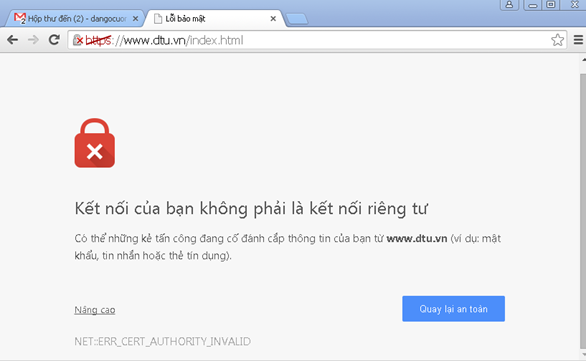
[3] Truy cập vào Web Server từ Client dùng Web browser với giao thức HTTPS. Xem hình bên dưới và làm theo các hướng dẫn tiếp theo.
- BÌNH TĨNH TRƯỚC HỘP THƯ SỐ – NGHỆ THUẬT NHẬN DIỆN EMAIL PHISHING TỪ GÓC NHÌN NGHIỆP VỤ
- HÓA THÂN THÀNH "KẺ TẤN CÔNG": KHI HIỂU RÕ CẠM BẪY, TA PHÒNG THỦ VỮNG VÀNG HƠN
- CÁC CÔNG CỤ XÂY DỰNG GIAO DIỆN ỨNG DỤNG BẰNG TRÍ TUỆ NHÂN TẠO (AI)
- Silent Lynx khai thác lỗ hổng WinRAR để triển khai Reverse Shell nhằm tấn công các cơ quan chính phủ
- Thông tin xác thực ConnectWise bị chiếm dụng, 173 môi trường Microsoft 365 bị truy cập trái phép